
Epson Expression 12000XL Manual
PDF manual · 74 Pages
English



Ask a Question
Frequently Asked Questions
For OCR and creating searchable PDFs, 200–300 dpi is recommended. For standard printing and sending by fax, 200–300 dpi works well. For film archiving or large print outputs, use much higher resolutions (1,200–6,400 dpi) depending on film size and desired print size.
Is this answer helpful?
Install the optional A3 Transparency Unit, unlock its transportation lock, place film in the correct holder (35mm strip, mounted slides, medium format, or 4×5), align with the transparency guide, select Photo Mode in Epson Scan 2, set Document Source to Transparency Unit and choose the matching Document Type and resolution, preview, then scan.
Is this answer helpful?
Enable Descreening on the Advanced Settings tab in Epson Scan 2 and set resolution to 600 dpi or less. If moiré persists, try changing resolution or use image adjustment features like Unsharp Mask and detailed tone controls to minimize the effect.
Is this answer helpful?
Use Document Mode, enable Text Enhancement, increase resolution to 200–300 dpi for OCR, adjust Threshold for black & white scans, ensure the original is straight and clean, and verify the correct Text Language in Image Format Options before saving as a searchable PDF.
Is this answer helpful?
Turn off and unplug the scanner, clean outer case with a damp cloth, wipe scanner and transparency glass with a soft dry cloth (use a small amount of glass cleaner sparingly), remove dust regularly, and avoid pressing the glass. Clean film holders and use soft cloths to prevent scratches.
Is this answer helpful?
Check connections, ensure Epson Scan 2 is installed, confirm the transportation lock is released, and that the Transparency Unit is fully closed when in use. Try power-cycling the scanner. If errors persist, contact Epson support as the scanner may need service or lamp replacement.
Is this answer helpful?
Yes. After installing Epson Scan 2 and connecting the scanner, place the original and press the scan button on the scanner. Epson Scan 2 launches; press the button again to start scanning with the configured settings.
Is this answer helpful?
Advantages and Disadvantages
Advantages

- Large A3 scanning area (310×437 mm) suitable for oversized originals and books
- High optical resolution (2400 dpi) with Micro Step up to 4800 dpi and output up to 6400 dpi
- Advanced image adjustments in Epson Scan 2 for photo restoration and document clarity
- Optional Transparency Unit supports 35mm, medium format, 4×5, mounted slides and film
- Comprehensive troubleshooting, maintenance guidance, and global Epson support info
Disadvantages

- Large file sizes and longer processing times at high resolutions
- Optional Transparency Unit required for film scanning adds cost and setup steps
- Some advanced features unavailable at certain settings (e.g., descreening limits)
- Scanner is heavy and requires two people to move safely
- Occasional Newton rings or color variance if film is curled or glass is not perfectly clean
Product Description
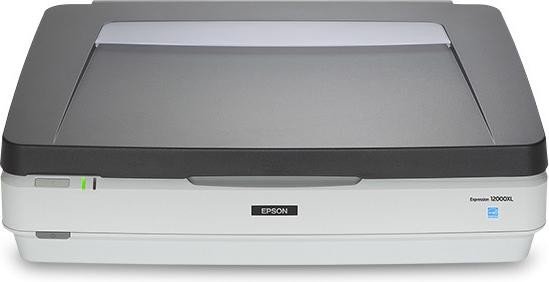
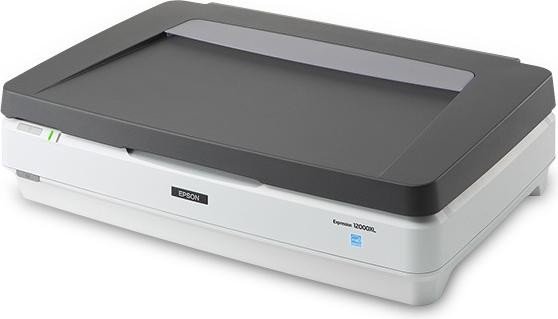
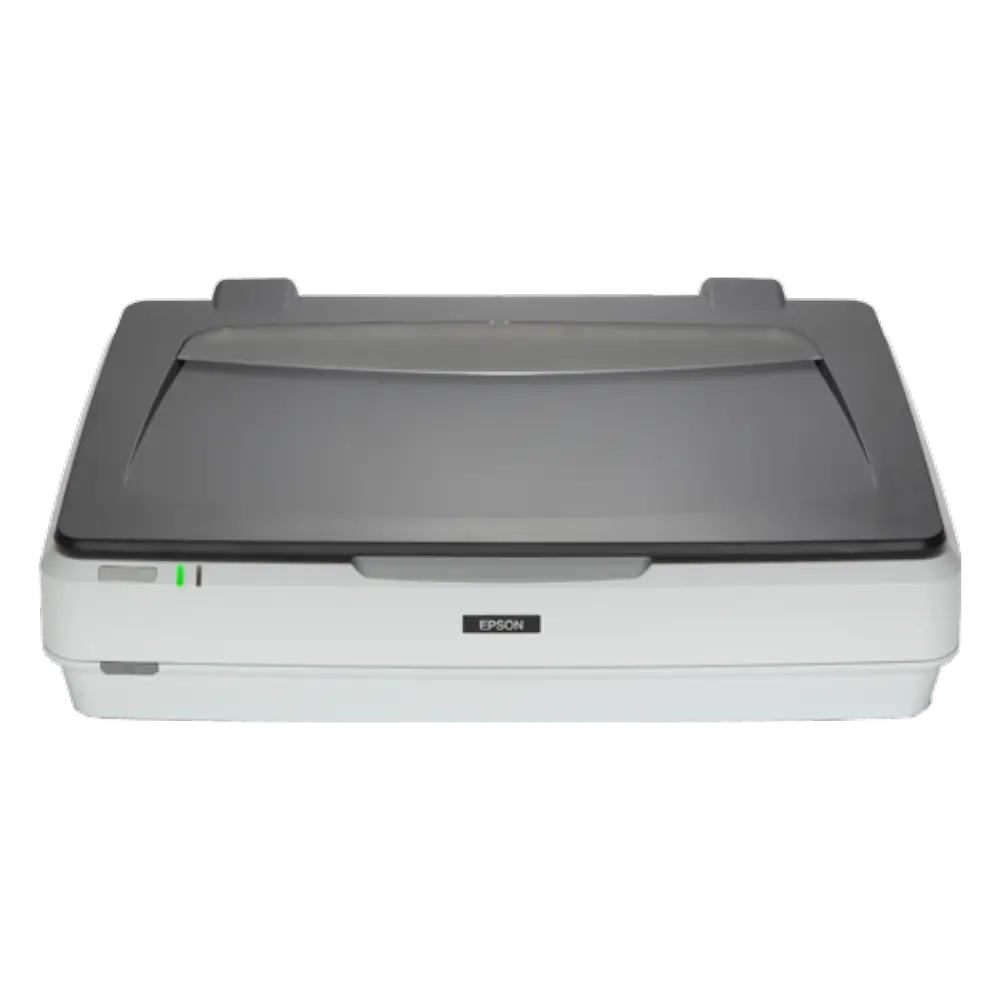
Epson Expression 12000XL Manual: Powerful A3 Scanning for Professionals
The Epson Expression 12000XL is a robust A3 flatbed color scanner designed for studios, archives, and professionals who need high-quality, versatile scanning. With a large 310×437 mm scanning area, a color CCD sensor, and an LED light source, it handles photos, documents, film, and slides with excellent fidelity. The scanner supports up to 2400 dpi optical resolution (with Micro Step up to 4800 dpi in sub-scan) and output resolutions up to 6400 dpi, making it capable of capturing fine detail for printing, archiving, and restoration.
Equipped with Epson Scan 2 software, the unit offers Photo and Document modes tailored to different original types. Photo Mode exposes advanced adjustment tools—brightness, contrast, saturation, unsharp mask, color restoration, backlight correction, descreening, dust removal, and grain reduction—so photographers and retouchers can refine images before saving. Document Mode provides OCR-friendly workflows, text enhancement, dropout/color enhance, threshold controls, and auto area segmentation for clear, searchable outputs. The scanner can save searchable PDFs when the OCR component is installed, streamlining document digitization.
An optional A3 Transparency Unit expands the scanner’s capabilities to film and slides. The transparency accessory includes film holders for 35 mm strips, mounted slides, medium format, 4×5 inch film, and supports non-standard sizes by placing film directly on the glass. The manual details installation, unlocking the transportation lock, and guidelines for placing films—emphasizing cleanliness and correct holder alignment to avoid Newton rings, color shifts, or scanning errors. Users get step-by-step instructions for choosing document source, document type, resolution, and previewing thumbnails to ensure accurate captures.
Everyday operation and maintenance are covered thoroughly. The guide highlights safe placement, cable and power recommendations, cleaning procedures for glass and the transparency unit, energy-saving settings, and transporting precautions (lock carriage and use two people for lifting). Troubleshooting sections address scanner lights and error conditions, scanning failures, preview and thumbnail issues, image artifacts (moiré, uneven colors, stripes), OCR recognition problems, and corrective measures like cleaning, adjusting settings, resetting Epson Scan 2, or updating software via EPSON Software Updater.
The manual also includes comprehensive technical specifications and system requirements for Windows and Mac OS X, interface and electrical specs, environmental ranges, and standards approvals. For users worldwide, it lists regional support contacts, Epson support web pages, and guidance on what information to have ready when contacting support.
Notes
- Keep scanner and transparency glass clean; dust and fingerprints cause spots and artifacts.
- Use recommended resolutions: 200–300 dpi for OCR/print; up to 1200–6400 dpi for film archiving/large prints.
- Always unlock/lock transportation mechanisms when installing or moving the unit.
- Use Epson Scan 2 Utility to reset settings or configure power-saving timers.
Search for 166 Manuals online


Type-in Brand or Model