
Epson SureLab D700 Manual
PDF manual · 106 Pages
English



Ask a Question
Frequently Asked Questions
The SureLab D700 uses a six-color set of Epson water-based dye ink cartridges (Black, Cyan, Magenta, Yellow, Light Cyan, Light Magenta). Epson recommends genuine cartridges for accurate ink level reporting and optimal print quality.
Is this answer helpful?
Load roll paper onto the spindle unit with the correct winding direction, insert the spindle into the roll paper feeder, adjust the inner and front edge guides to the paper width, insert the leading edge until the paper light turns on, remove slack by rolling carefully, then push the feeder into the printer and set the paper type/level in the Maintenance Tool.
Is this answer helpful?
The maintenance cartridge free-space indicator lights on the printer and the Maintenance Tool will show remaining capacity. When the maintenance light signals or the Maintenance Tool notifies you the cartridge is full or near full, replace it promptly to avoid printing stoppage and follow disposal regulations.
Is this answer helpful?
Delete all jobs in the print queue, then follow the jam-specific procedure: if jammed in the roll feeder, remove the scrap paper box and pull out the feeder to clear the paper; if jammed internally, open the rear and top covers, carefully remove any trapped paper, move the print head if necessary, and reload paper per the replacement instructions.
Is this answer helpful?
Use the Maintenance Tool to run nozzle checks, diagnostic cleaning, and forced cleaning. If clogged nozzles persist after cleaning, contact service support. Regular nozzle checks and periodic cleaning help keep the print head in good condition.
Is this answer helpful?
Operate the printer between 10–35°C and 20–80% relative humidity without condensation. Avoid dusty, smoky, or damp environments and sudden temperature changes to prevent condensation, nozzle clogging, and paper curling.
Is this answer helpful?
Yes. Install the printer driver for printing control and the Maintenance Tool for paper settings, head maintenance, print head alignment, operation condition settings, and checking ink and maintenance cartridge levels. Use these tools to keep settings synchronized with physical media.
Is this answer helpful?
Advantages and Disadvantages
Advantages

- High-quality six-color dye-based printing for smooth gradations and vivid color.
- Robust production features: roll feeder, spindle unit, optional print trays for workflow efficiency.
- Comprehensive maintenance tools: nozzle checks, diagnostic/forced cleaning, head alignment.
- Clear status indicators and error messages simplify troubleshooting and reduce downtime.
- Strong support and documentation with regional service contacts and driver downloads.
Disadvantages

- Requires use of genuine Epson consumables for optimal performance and accurate ink reporting.
- Maintenance cartridge and regular head cleaning consume ink and require monitoring.
- Large footprint and weight (~23 kg) may need suitable workspace and handling precautions.
- Class A EMC rating may necessitate attention to interference in residential settings.
- Operational limits (temperature/humidity) require controlled environment to avoid print issues.
Product Description
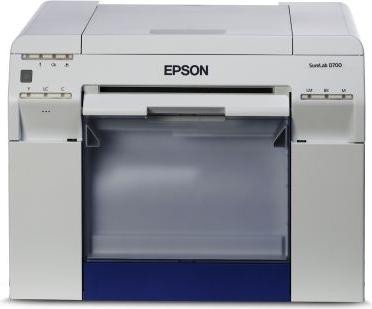
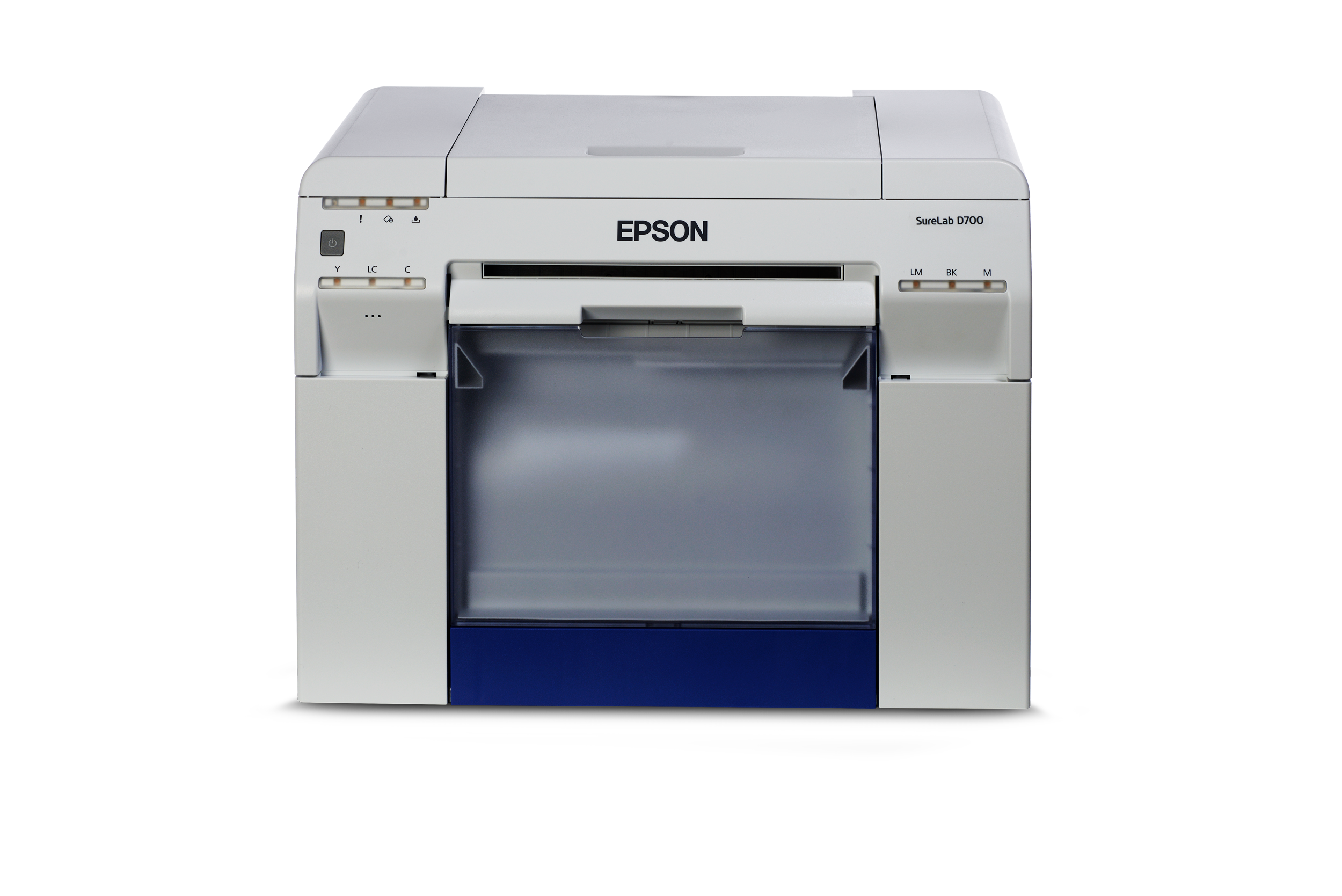
Epson SureLab D700 — Professional Photo Printer Overview
The Epson SureLab D700 is a high-performance dye-based photo printer engineered for studios, photo labs, and professional users who demand consistent color, fast throughput, and reliable operation. With a six-color ink set and an on-demand inkjet print head, the D700 produces vivid, smooth gradations and sharp detail across glossy, luster, and matte media. It supports a wide range of roll and cut-sheet widths, making it flexible for prints from small snapshots to larger photographic outputs.
Built for production environments, the SureLab D700 combines robust mechanical design with careful attention to maintenance and workflow. Key features include an integrated roll paper feeder with spindle unit, optional print trays for efficient output handling, and a maintenance cartridge to collect waste ink from head cleaning cycles. The printer’s interface and bundled Maintenance Tool provide straightforward control over paper type, paper level, head maintenance, nozzle checks, and diagnostic cleaning, helping minimize downtime and keep print quality consistent.
Users will appreciate the detailed status indicators and safety features: multiple lights identify operational, paper, maintenance cartridge, and ink conditions, while audible warnings and on-screen error messages guide troubleshooting. The unit includes guidance for paper handling, storage, and recommended environmental conditions to preserve print quality and avoid issues like curling or nozzle clogging. Consumables such as genuine Epson ink cartridges (six-color set) and maintenance cartridges are specified to ensure reliable performance and color accuracy.
Installation and servicing considerations emphasize proper ventilation, secure placement, correct power and earthing practices, and careful handling of ink and paper. The printer’s documentation outlines step-by-step procedures for replacing inks and maintenance cartridges, loading roll paper with the spindle unit, emptying the scrap paper box, and resolving paper jams. Built-in safeguards stop printing if covers are opened or if unsafe conditions are detected, protecting operators and equipment.
Epson supplies a robust support network and software tools: the printer driver and Maintenance Tool enable print setup, paper settings, head alignment, and periodic nozzle checks, while regional support channels and online resources assist with driver downloads, troubleshooting, and repairs. The D700’s specifications (including max resolution, nozzle configuration, supported paper widths and lengths, electrical requirements, and environmental operating ranges) make it suitable for professional photo labs requiring consistent color output, manageable maintenance, and integration into production workflows.
Notes
- Use genuine Epson ink cartridges and maintenance cartridges to ensure accurate ink level detection and optimal print quality.
- Keep the printer in the recommended temperature and humidity ranges (operating: 10–35°C, 20–80% RH) to avoid condensation and nozzle issues.
- Update paper type and paper level settings in the Maintenance Tool immediately after replacing paper to ensure correct feed and reproduction.
Search for 166 Manuals online


Type-in Brand or Model