
Huawei E5331 Manual
PDF manual · 22 Pages
English



Ask a Question
Frequently Asked Questions
Enable Wi‑Fi on your client, find the E5331 SSID (printed under the back cover), select it, enter the wireless network key provided on the label, and wait until the Wi‑Fi icon indicates a connection.
Is this answer helpful?
Open a browser and go to http://192.168.1.1 (or http://3.home). The default login password is admin. Use the web interface to change settings like APN, DHCP and security.
Is this answer helpful?
Enable power saving in the web management settings so the unit enters standby when idle. Optionally set Wi‑Fi to turn off automatically if no clients connect for a preset period, and charge with a compatible charger when needed.
Is this answer helpful?
Check the E5331 is powered on and has signal, verify client is connected to the correct SSID and password, confirm APN and PPP credentials are correct in profile settings, and ensure DHCP is enabled or assign a manual IP if required.
Is this answer helpful?
Press and hold the RESET button until all indicators go off. This restores all web settings and parameters to default and deletes any personal configurations.
Is this answer helpful?
Yes. Connect the E5331 to a PC using a compatible micro USB data cable to charge. For faster or safer charging, use a charger approved for the device.
Is this answer helpful?
Place the E5331 near windows or on higher floors and in a well‑ventilated area; avoid obstructions and potential sources of interference to maximize signal strength.
Is this answer helpful?
Advantages and Disadvantages
Advantages

- Portable and lightweight — easy to carry for travel and remote use.
- Supports multiple devices over Wi‑Fi and single‑device USB tethering.
- Clear LED indicators for signal, Wi‑Fi, battery and SMS status.
- Simple setup using SSID and wireless key printed under the cover.
- Web management interface allows configuration of APN, DHCP and security.
Disadvantages

- Limited battery life compared to larger mobile hotspots or power banks.
- Older hardware with basic features may lack advanced modern speeds.
- Depends on cellular coverage; poor signal leads to slow or no connection.
- Requires compatible charger and careful handling to avoid overheating.
- Resetting to factory defaults erases all custom configurations.
Product Description
Huawei E5331 — Portable Mobile Wi‑Fi Overview
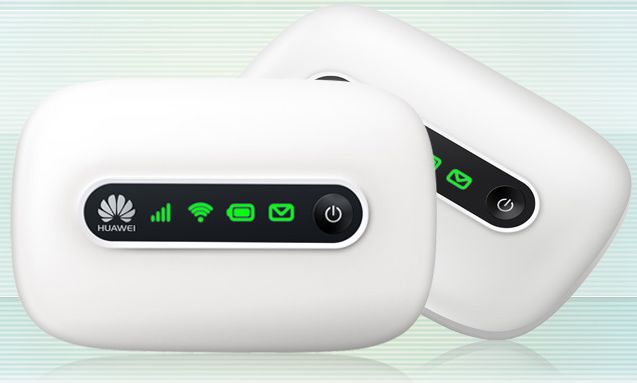
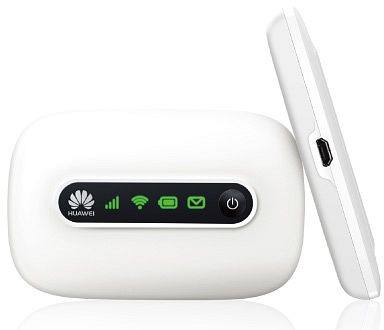
The Huawei E5331 is a compact mobile Wi‑Fi hotspot designed to provide reliable internet access for multiple devices on the go. Lightweight and battery-powered, it creates a local Wi‑Fi network from a cellular SIM card, enabling laptops, smartphones, tablets, game consoles and other Wi‑Fi clients to connect without relying on fixed broadband. The device features status indicators for signal, Wi‑Fi, battery and SMS, a micro USB port for charging and tethering, and a simple power button for quick operation.
Key Features and Everyday Use
Out of the box, the E5331 offers straightforward connectivity: insert a standard SIM card, power on the device and use the SSID and wireless key (printed inside the back cover) to join the Wi‑Fi network. It supports multi‑device access over Wi‑Fi and can also connect a single device via USB. Connection modes include automatic online access when powered on or manual control through the device’s web management interface (http://192.168.1.1 by default, password: admin).
Indicators give at‑a‑glance feedback: signal strength (green/orange/red), Wi‑Fi status, battery charge and SMS notifications. When idle for a preset period the unit enters power‑saving standby and can optionally turn off Wi‑Fi to conserve battery. Charging is done via a compatible charger or a PC using the micro USB cable; only use approved chargers to avoid damage.
Setup and Troubleshooting
Setting up is simple: ensure the Wi‑Fi adapter on the client device is enabled, locate the E5331 SSID, enter the wireless key and wait for the connection. If you need advanced configuration, log into the web management page to adjust APN, network modes, DHCP, PIN/PUK handling and security settings. The device supports restoring factory defaults via the reset button if settings need to be cleared.
Common troubleshooting steps include checking power and signal, verifying SSID and password, ensuring correct APN and PPP credentials for the network operator, and confirming DHCP settings. The manual also advises optimal placement for signal — near windows or higher floors — and warns against overheating by using the device in well‑ventilated areas.
Notes
- Default login address: http://192.168.1.1; default password: admin.
- SSID and wireless key are printed under the back cover and on the keepsake card.
- Use only compatible chargers to avoid warranty void and safety risks.
- PIN and PUK codes are supplied with the SIM card; contact your service provider if needed.
- Restoring factory defaults erases all personal configurations.
Search for 166 Manuals online


Type-in Brand or Model