
MikroTik RouterBOARD SXTsq Lite5 Manual
PDF manual · 3 Pages
English



Ask a Question
Frequently Asked Questions
The default IP address is 192.168.88.1. Login username is admin with no password. Set a secure admin password immediately after first access.
Is this answer helpful?
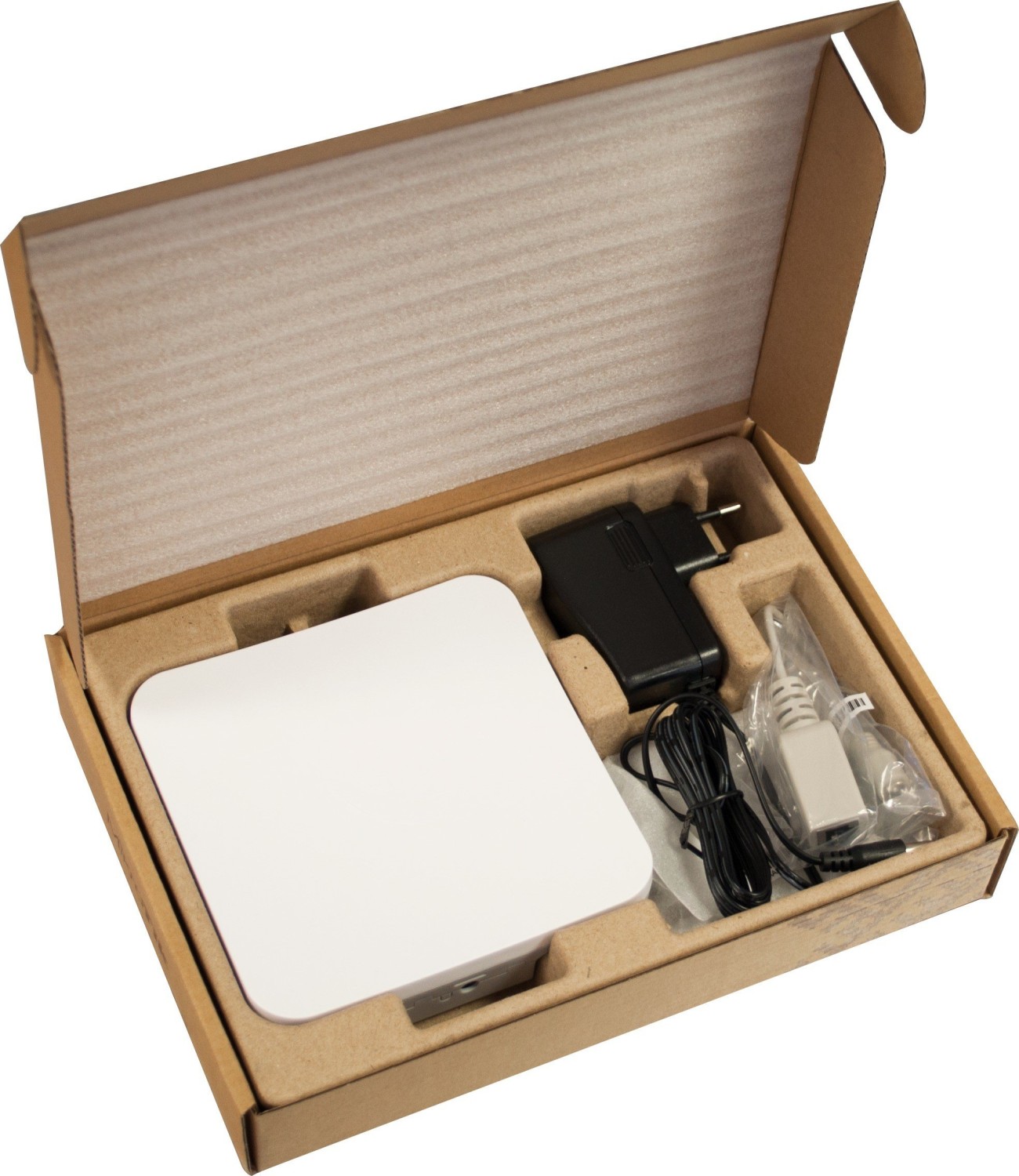
The SXTsq Lite5 is powered via Passive PoE and accepts 10–30 V. A PoE injector and power supply are included with the unit.
Is this answer helpful?
Yes. Configure wireless mode to bridge or single-client AP as appropriate. The integrated directional antenna and RouterOS features make it suitable for PTP deployments with careful alignment.
Is this answer helpful?
Use Winbox to connect via the device MAC address. If reinstalling RouterOS is required, use the RESET button sequence on boot to enable Netinstall mode and recover the device.
Is this answer helpful?
Yes. The unit includes a grounding terminal which should be connected to the tower or building grounding system to reduce ESD and lightning risk. Follow local antenna placement and RF exposure regulations.
Is this answer helpful?
The device supports RouterOS at or above the version indicated in the system resource menu. Other operating systems have not been tested or validated for use with this hardware.
Is this answer helpful?
The unit complies with FCC, Industry Canada and CE directives. Operators must respect RF exposure distances, use certified antennas where required, and configure output power per local regulations.
Is this answer helpful?
Advantages and Disadvantages
Advantages

- Integrated 23° directional antenna with up to 16 dBi gain for focused long-range links
- Compact, weatherproof enclosure with included pole-mount ring for easy outdoor installation
- Supports Passive PoE (10–30 V) with included injector and power supply for simple powering
- RouterOS platform enables flexible wireless modes, advanced routing and recovery via Netinstall
- AutoMDI/X Ethernet port simplifies cabling by accepting either straight or crossover cables
Disadvantages

- Requires familiarity with RouterOS for advanced configuration; learning curve for novices
- Supports only RouterOS; third-party or alternative OS options are not validated
- Directional antenna limits coverage angle; alignment is required for optimal links
- RF exposure and antenna rules require adherence to regional regulations and proper spacing
- Single Ethernet port may be limiting for installations needing multiple wired interfaces
Product Description
MikroTik RouterBOARD SXTsq Lite5 Manual
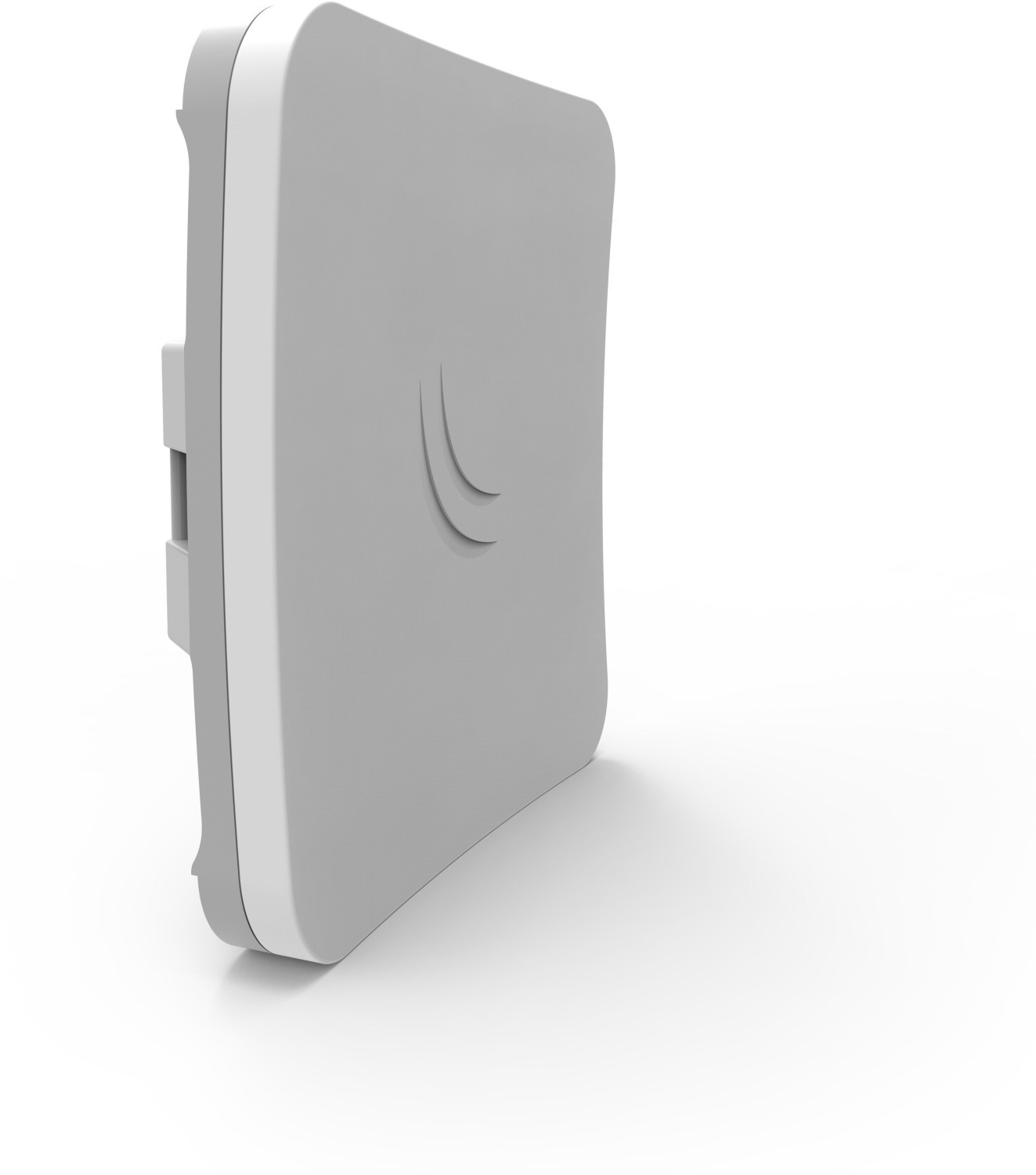
The MikroTik RouterBOARD SXTsq Lite5 is a compact, weatherproof outdoor wireless solution designed for directional long-range links and subscriber CPE roles. Built around RouterOS, this model combines an integrated 23° directional antenna with a high-gain RF front end to deliver reliable wireless performance in the 5 GHz band. Its small form factor and included pole-mount ring make it simple to position and align for point-to-point or point-to-multipoint installations.
Design and installation
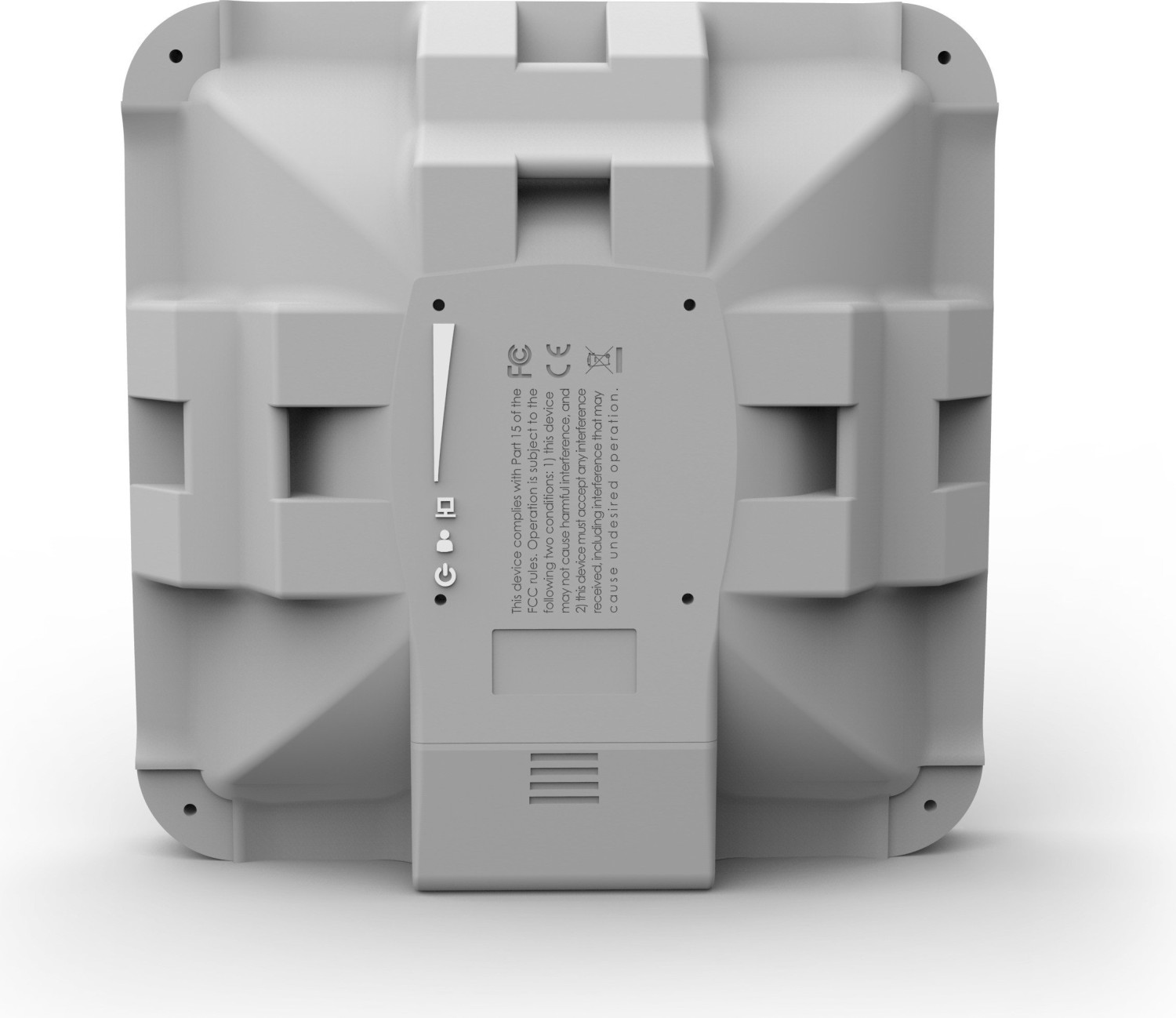
The SXTsq Lite5 ships with a metallic mounting ring that fits 2–7 cm diameter poles. Mounting requires only a Phillips screwdriver to secure the ring through one of three back slots. The device includes a grounding terminal to reduce the risk of ESD and lightning damage and is built to withstand outdoor conditions.
Powering is handled via Passive PoE (10–30 V), with a PoE injector and power supply included. One Ethernet port supports automatic crossover correction (AutoMDI/X), simplifying network connections. The device boots RouterOS and is preconfigured as a wireless client (CPE), streamlining basic setup and initial connection.
Configuration and features
Out of the box, the unit uses DHCP by default and can be accessed via 192.168.88.1 (username: admin, no password) or by MAC address using Winbox if IP connectivity is unavailable. QuickSET provides a straightforward interface to select and connect to an access point and set an administrative password. Advanced configuration and recovery options include a RouterBOOT reset button with multiple press behaviors (reset config, clear defaults, or trigger Netinstall for network reinstallation of RouterOS).
The SXTsq series supports RouterOS versions indicated by the system resource menu; other operating systems are not supported. Regulatory compliance covers FCC, Industry Canada, and CE requirements, with mandatory spacing for RF exposure and certified antenna usage in regulated regions.
Use cases
This unit excels as a CPE for remote subscribers, a directional client in crowded deployments, or a compact PTP node when used in bridge mode. Its integrated antenna and RouterOS flexibility make it suitable for ISPs, WISPs, and installers needing a dependable 5 GHz outdoor endpoint.
Notes
- Default access: 192.168.88.1, user: admin (no password). Change the admin password immediately after first login.
- Use the grounding terminal and follow local regulations for antenna placement and RF exposure.
- For reinstalling RouterOS over network, use the RESET button sequence to enable Netinstall.
Search for 166 Manuals online


Type-in Brand or Model