
MikroTik RouterBOARD wAP LTE kit Manual
PDF manual · 4 Pages
English



Ask a Question
Frequently Asked Questions
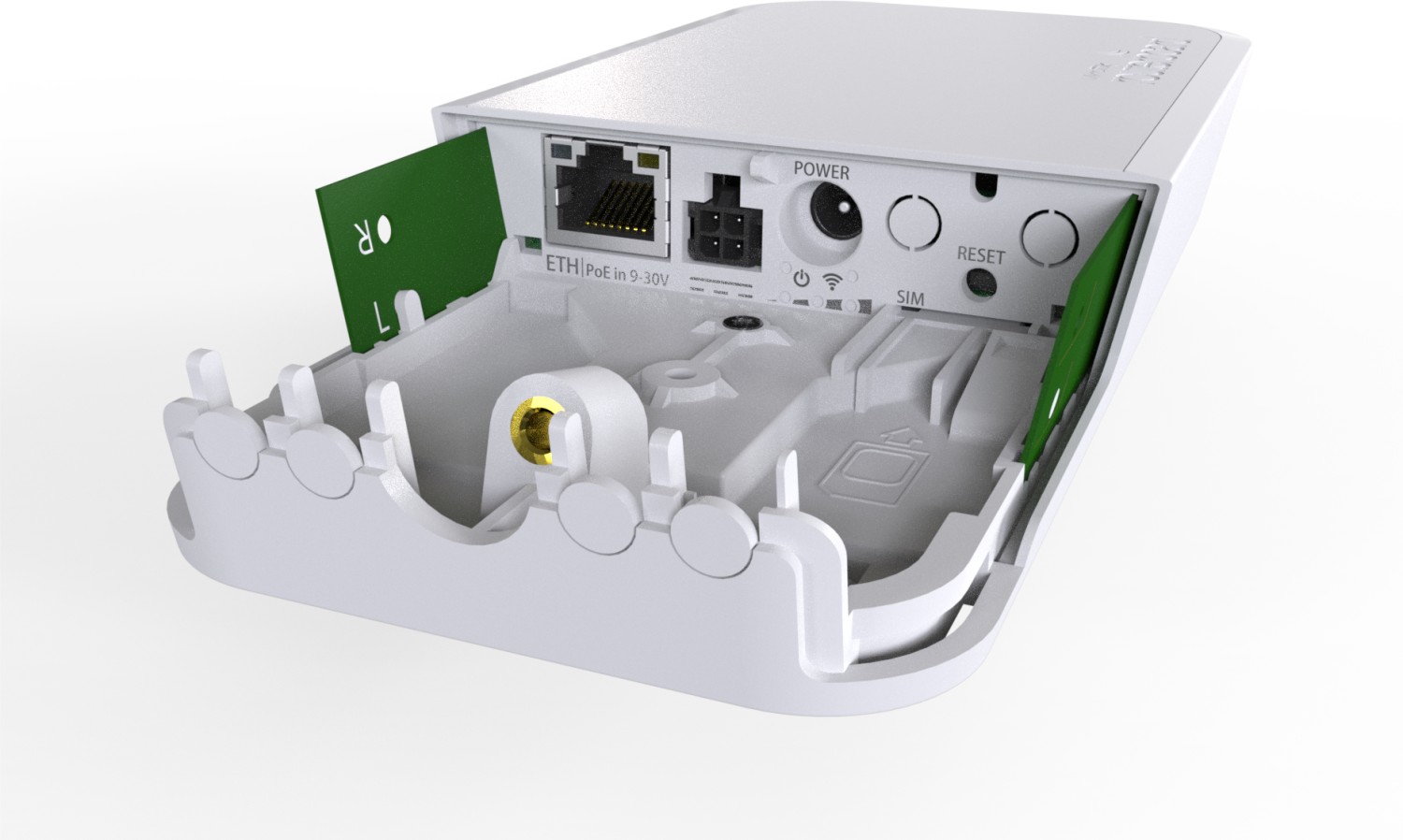
You can power it via the included 24 V passive PoE injector (Ethernet port accepts 9–30 V), the DC jack (5.5/2.0 mm, 9–30 V) using the supplied adapter, or the automotive 4‑pin connector for 12/24 V vehicle installations.
Is this answer helpful?
Connect to the default SSID or LAN, then open the device IP in a browser (commonly 192.168.88.1 or 192.168.88.14). You can also use Winbox to connect by MAC address from the LAN side if IP access is not available.
Is this answer helpful?
Yes. Remove the internal board screws, slide out the PCB, insert a compatible miniPCIe LTE modem, attach MAIN and AUX u.FL antenna leads, secure with screws, reinsert the board and insert a miniSIM (2FF) into the SIM slot.
Is this answer helpful?
Use the reset button during boot for staged recovery: short press to reset RouterOS, longer presses enable CAP mode or Netinstall. You can also perform network boot/Netinstall from the first Ethernet port for reinstalling RouterOS.
Is this answer helpful?
Yes. The unit provides SMA mounting holes for external antennas and two u.FL connectors for the internal modem. You may mount SMA antennas to the case after removing plastic covers; follow regional antenna certification rules.
Is this answer helpful?
RouterOS is preinstalled and the device is preconfigured for immediate use. It is recommended to click 'Check for updates' and update RouterOS to the latest stable version to ensure optimal performance and security.
Is this answer helpful?
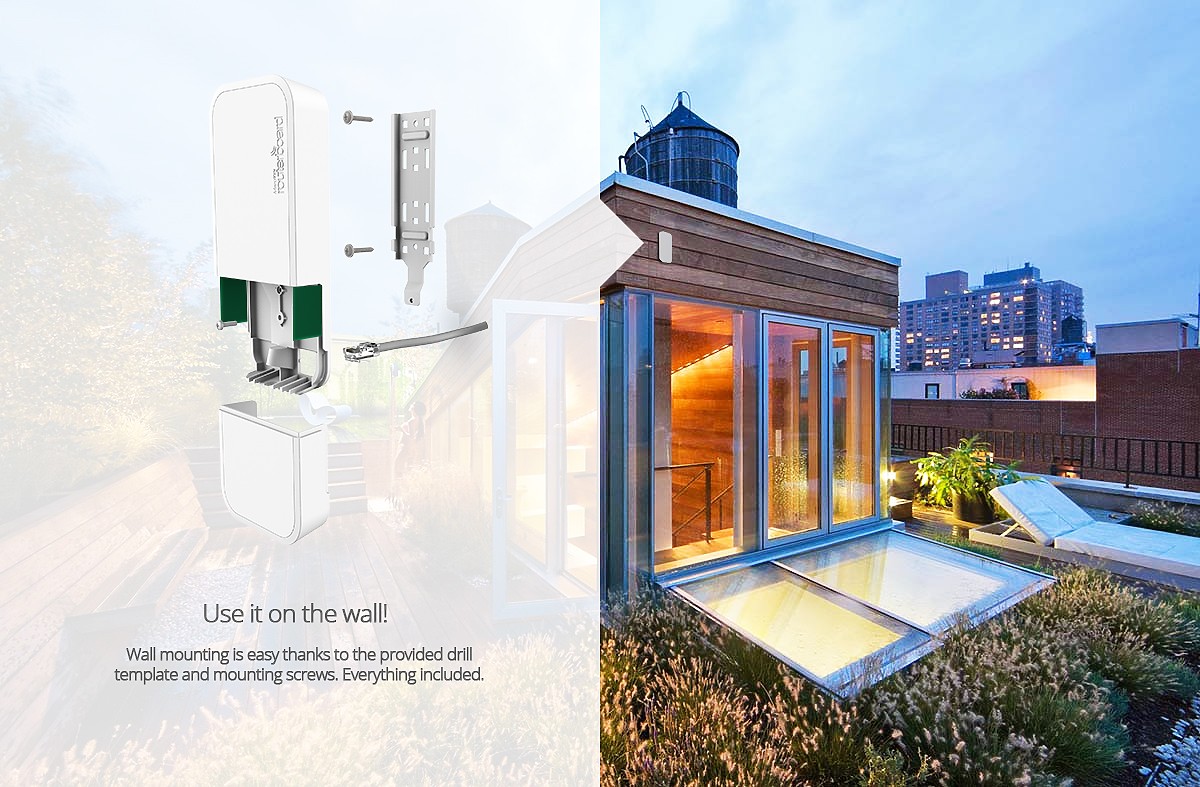
Mounting options include wall, ceiling, and pole installations. The package includes a drill hole template, mounting plate and a steel bracket for drop ceilings; use the provided screws and anchors for secure attachment.
Is this answer helpful?
Advantages and Disadvantages
Advantages

- Integrated miniPCIe LTE support with SIM slot enables mobile broadband without extra housings.
- Multiple power options: passive PoE (9–30 V), DC jack, or automotive connector for vehicle use.
- Compact, mountable design with wall/ceiling/pole options and included mounting template and bracket.
- RouterOS provides advanced routing, wireless modes (AP/station/bridge) and Winbox/web management.
- External antenna options via SMA holes and u.FL connectors for improved cellular reception.
Disadvantages

- Single Ethernet port limits wired LAN expansion without an additional switch.
- miniPCIe and SIM slot depend on compatible modems; not all modems guaranteed supported.
- Powering specifications and RF rules require careful attention for vehicle or outdoor installs.
- Basic Wi‑Fi module is 2 GHz only; dual‑band support may be absent on some models.
- Configuration may be complex for non‑technical users unfamiliar with RouterOS.
Product Description
MikroTik RouterBOARD wAP LTE kit — Compact LTE Wi‑Fi Gateway
The MikroTik RouterBOARD wAP LTE kit is a compact, weather‑resistant wireless access point with built‑in LTE modem support, designed for small offices, kiosks, vehicles and remote sites. It combines a 2 GHz Wi‑Fi AP, a single Gigabit‑capable Ethernet port with passive PoE input, a miniPCIe slot for 3G/4G/LTE modems and a SIM slot to deliver mobile broadband where wired connections are unavailable.
Setup is straightforward: open the bottom lid with a Phillips screwdriver, power the unit via the included 24 V adapter/PoE injector, or use the automotive connector for 12/24 V vehicle installations. By default the device broadcasts a MikroTik SSID and provides a web interface at 192.168.88.1 (or 192.168.88.14 on some units) for quick configuration. RouterOS runs on the device, offering a rich feature set — from AP, station and bridge modes to CAP mode and Netinstall recovery options.
Hardware highlights include a robust miniPCIe slot with dual antenna connections and accessible SMA mounting holes for external antennas, a protected miniSIM slot (2FF) with latch, and multiple mounting options (wall, ceiling, pole) aided by a drill template and mounting plate. Power options are flexible: passive PoE (9–30 V), DC jack (5.5/2.0 mm, 9–30 V), or automotive connector. Power consumption is modest (approx. 6 W without miniPCIe modem, up to 8 W under full miniPCIe load).
RouterOS management supports Winbox and web access, firmware updates, and recovery via network boot. The reset button provides multiple boot‑time actions: RouterOS reset, CAP mode, Netinstall or RouterBOOT recovery when used at specific intervals during boot. Compliance notes and regulatory statements (FCC, CE, EAC) are included by the manufacturer; antenna placement and RF exposure guidance must be followed.
This kit is well suited for installers who need a rugged, versatile LTE/Wi‑Fi gateway that can be mounted outdoors or in vehicles, offers flexible powering, and supports advanced RouterOS configuration for routing, firewall and wireless management.
Notes
- Includes 24 V adapter and PoE injector; check regional power requirements before installation.
- Use certified antennas where required by local regulations; maintain minimum antenna separation from users as specified.
- Update RouterOS after first boot for best stability and features.
Search for 166 Manuals online


Type-in Brand or Model