
TP-Link Archer C7 (verschiedene Revisionen) Manual
PDF manual · 115 Pages
English


Ask a Question
Frequently Asked Questions
Connect modem to the router’s Internet port, power on devices, then visit http://tplinkwifi.net (or 192.168.0.1). Use the Quick Setup wizard to configure your internet connection and set the admin password. Alternatively use the TP‑Link Tether app.
Is this answer helpful?
Download firmware matching your hardware revision from TP‑Link support. Backup current settings, remove USB devices, then use Advanced > System Tools > Firmware Upgrade for online or manual update. Do not power off the router during upgrade.
Is this answer helpful?
Log in to the router, go to Advanced > USB Settings > Sharing Access, enable FTP(via Internet) and configure authentication and port. Ensure your WAN IP is public (DDNS may help) and set proper usernames and permissions for security.
Is this answer helpful?
Use strong WPA2/WPA3 Wi‑Fi encryption, change default passwords, enable SPI firewall and DoS protection, bind critical devices via IP/MAC binding, disable WPS if not needed, and keep firmware up to date to patch vulnerabilities.
Is this answer helpful?
Enable VPN server in Advanced > VPN Server. For OpenVPN, generate a certificate, export the config, install an OpenVPN client on remote devices and import the config. For PPTP, enable PPTP server and create user accounts, then configure the client with the router’s WAN address and credentials.
Is this answer helpful?
Go to Advanced > QoS > Settings, enable QoS and input your ISP’s upload/download limits. Add a rule By Device (view existing devices) and assign the desired priority or bandwidth percentage for that device.
Is this answer helpful?
If using TP‑Link ID, use the cloud password recovery. Otherwise connect via Ethernet and use the Forgot Password flow or hold the Reset button >5 seconds to restore factory defaults, then reconfigure the router.
Is this answer helpful?
Advantages and Disadvantages
Advantages

- Dual‑band AC1750 performance with external antennas for broad coverage and stable speeds.
- Comprehensive feature set: QoS, VPN server (OpenVPN/PPTP), IPv6, DDNS, and advanced NAT forwarding.
- USB port supports media sharing (DLNA), FTP remote access and offline downloads.
- Intuitive Quick Setup and TP‑Link Tether app for easy local and remote management.
- Robust security options: SPI firewall, DoS protection, access control, and IP/MAC binding.
Disadvantages

- Feature labels and availability can vary across different hardware revisions and firmware versions.
- Remote USB and DDNS require a public WAN IP; many ISPs use private WAN addresses.
- PPTP VPN offers weaker security compared to OpenVPN; setup complexity for secure VPN may be higher.
- Some advanced tasks (firmware matching, static routes, port mapping) require networking knowledge.
- WPS can be a security risk if enabled; careful management of PIN and WPS settings is needed.
Product Description
TP-Link Archer C7 (verschiedene Revisionen) Manual
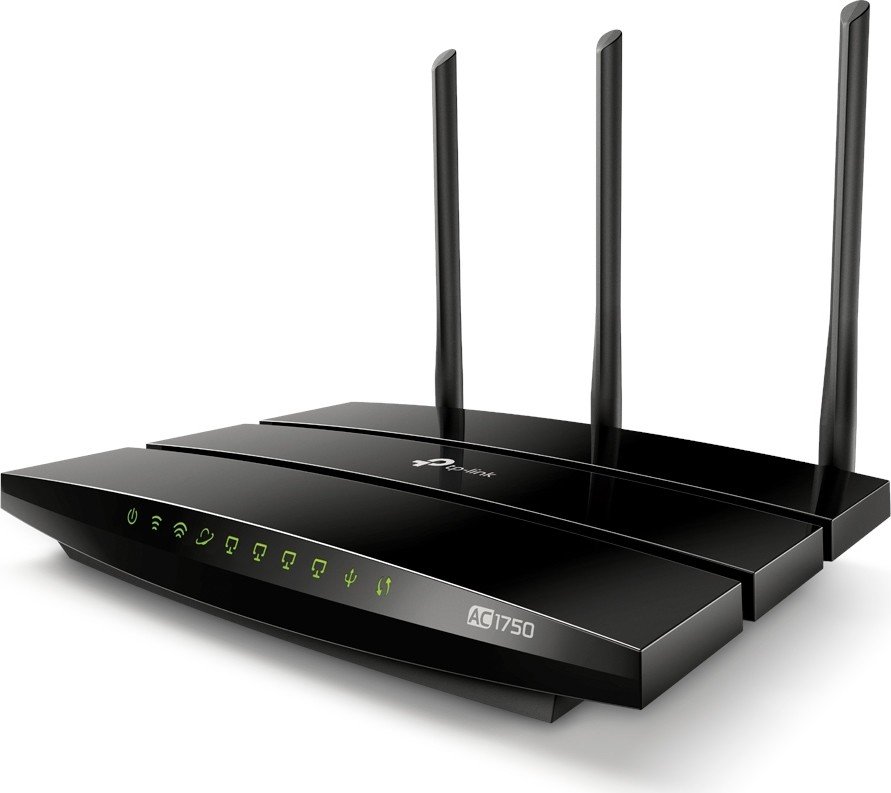
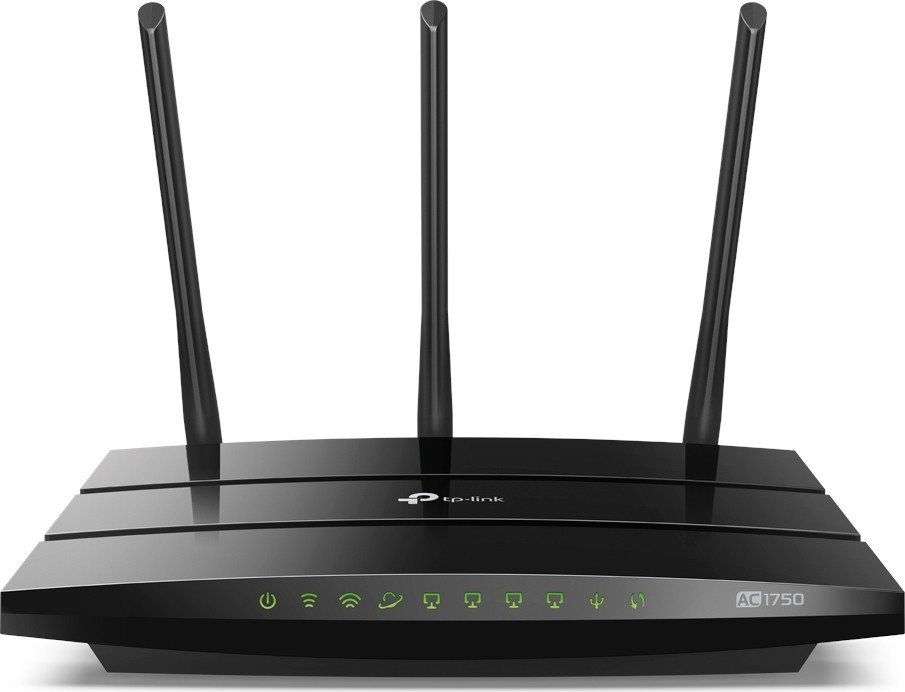
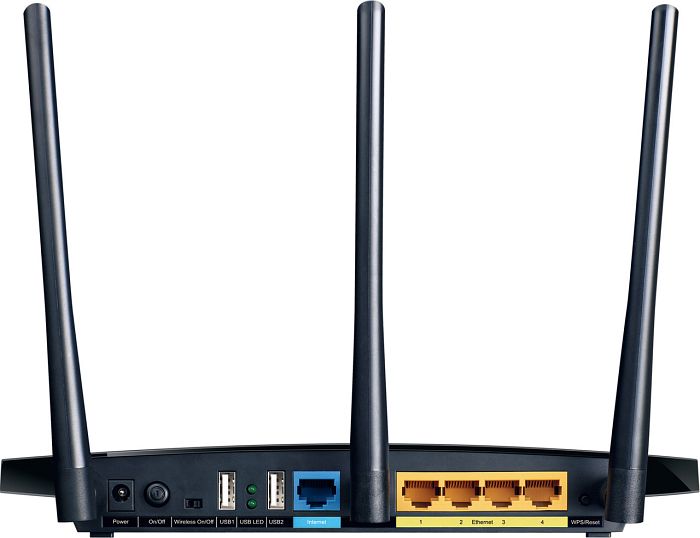
The TP-Link Archer C7 remains a reliable AC1750 dual-band gigabit router across various hardware revisions. Designed for small office/home office (SOHO) users, it combines strong wireless coverage, wired gigabit performance, and a rich feature set that addresses everyday networking needs. With three external antennas, dual-band Wi‑Fi (2.4GHz and 5GHz), and multiple Ethernet ports plus a USB port, the Archer C7 balances speed, range, and versatility for mixed wired/wireless environments.
Overview and Everyday Use
Out of the box the Archer C7 is easy to set up via an intuitive web interface or the TP‑Link Tether mobile app. The Quick Setup wizard walks users through internet type detection (Dynamic IP, Static IP, PPPoE, L2TP, PPTP) and Wi‑Fi configuration. For users who prefer manual control, advanced menus allow fine tuning of LAN settings, DHCP reservations, static routes, VLAN/ IPTV modes, and wireless parameters like channel width, transmit power and security modes.
The router supports modern conveniences such as WPS for fast device pairing and TP‑Link Cloud for remote management with a TP‑Link ID. For households with mixed device demands, Quality of Service (QoS) lets you allocate bandwidth priorities by device, while guest network support keeps visitors isolated from the main LAN. USB sharing unlocks local media streaming (DLNA), FTP access, and offline download tasks that let the router fetch files independently.
Security, Forwarding and Remote Access
Security features include SPI firewall, DoS protection, access control (blacklist/whitelist), and IP/MAC binding to reduce ARP spoofing risks. NAT forwarding options — Virtual Servers, Port Triggering, DMZ and UPnP — enable hosting services and smooth online gaming experiences. Built‑in VPN server support (OpenVPN and PPTP) allows remote access to the home network; OpenVPN is recommended for stronger security.
System management tools are comprehensive: firmware upgrade (online/manual), scheduled reboot, backup/restore configurations, system logs and password recovery. The router also supports IPv6, Dynamic DNS, and remote administration with configurable access restrictions.
Who Should Use It
The Archer C7 is well suited for users who need robust Wi‑Fi coverage and gigabit wired connections without enterprise complexity. It fits homes with multiple streaming/gaming devices, small offices needing VPN or remote management, and tech‑savvy users who like to customize routing, security and USB services.
Notes
- Features and menu names may vary slightly between hardware revisions and firmware versions. Always match firmware files to your hardware revision before upgrading.
- For remote USB/FTP access and DDNS, a public WAN IP is required; private WAN IPs (e.g., 192.168.x.x) will block these services.
- Use WPA2/WPA3 where available and keep firmware updated to mitigate vulnerabilities.
Search for 166 Manuals online


Type-in Brand or Model