
TP-Link TL-WN725N, 2.4GHz WLAN, USB-A 2.0 [Plug] Manual
PDF manual · 46 Pages
English



Ask a Question
Frequently Asked Questions
The TL-WN725N supports major desktop OS platforms: Windows (multiple versions with a setup wizard and optional TP‑Link Utility), macOS (installer package for supported versions) and Linux (drivers available for download on TP‑Link’s support page). Consult the product page for specific compatible OS versions and drivers.
Is this answer helpful?
Plug the adapter into a USB port, cancel any Found New Hardware wizard on older Windows, then run Autorun from the resource CD or download drivers from TP‑Link. Choose to install the driver alone or install the TP‑Link Wireless Configuration Utility for extra features like WPS and profile management.
Is this answer helpful?
SoftAP turns the adapter into a software-enabled access point so your computer can share an internet connection wirelessly. Enable SoftAP via TP‑Link Utility, set SSID, encryption (WPA2-AES recommended) and a strong security key, then select the internet-facing connection to share.
Is this answer helpful?
LED off indicates driver not installed or radio disabled; slow flashing means driver installed with no data transfer; fast flashing indicates active data transmission. If LED stays off, try reinserting the adapter, using a different USB port, or reinstalling drivers.
Is this answer helpful?
Yes. The TL-WN725N supports WPS via Push Button Configuration (PBC) or PIN. Use the TP‑Link Utility’s WPS tab to select PBC or enter the router’s PIN, then complete the pairing within the router’s WPS timeframe.
Is this answer helpful?
The adapter supports 64/128-bit WEP, WPA/WPA2, WPA-PSK/WPA2-PSK with TKIP/AES and IEEE 802.1x, covering the typical security needs of home and small office networks.
Is this answer helpful?
Drivers, utilities and the latest software are available from TP‑Link’s Download Center on the product support page. Additional help can be found on TP‑Link’s support site and community forums.
Is this answer helpful?
Advantages and Disadvantages
Advantages

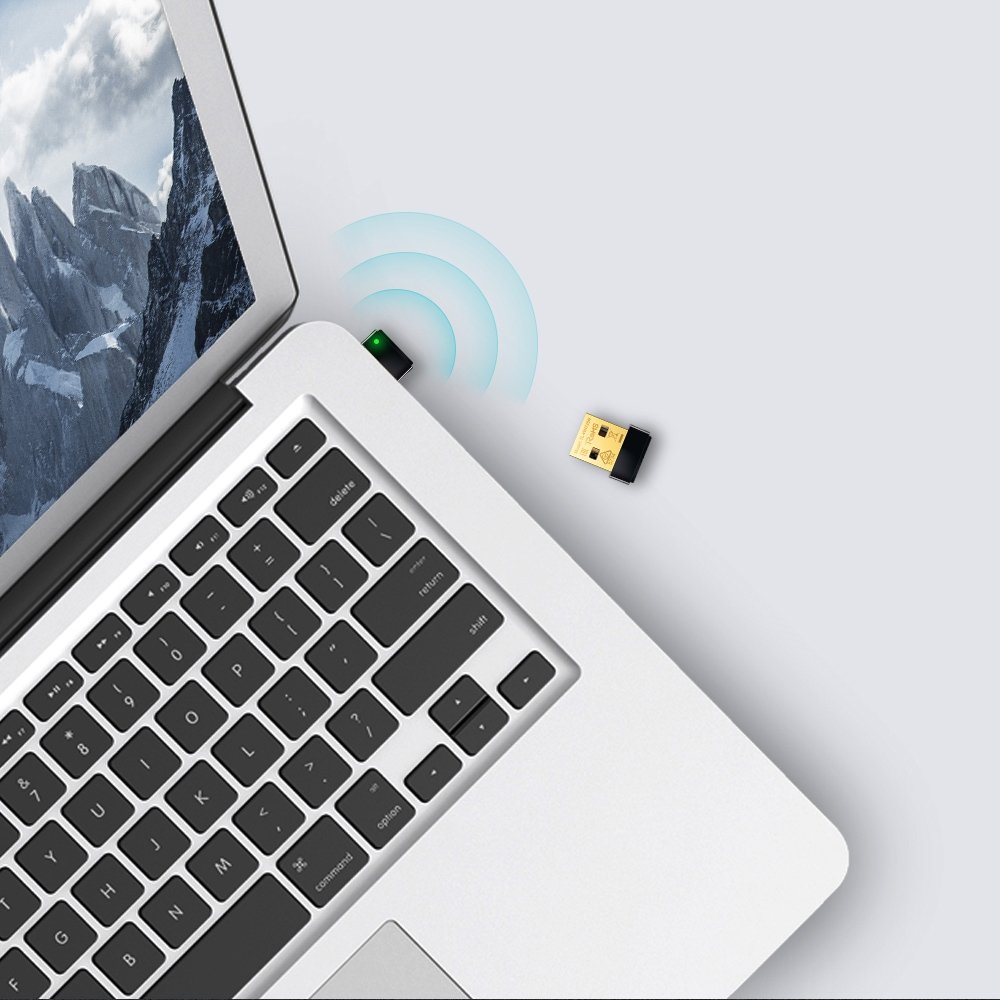
- Ultra-compact nano design fits flush with laptop USB ports and is travel-friendly.
- Supports up to 150Mbps on 2.4GHz making it sufficient for browsing and standard-definition streaming.
- Compatible with Windows, macOS and Linux for broad device support.
- Easy setup with TP-Link Utility, Windows/macOS built-in tools, and WPS pairing options.
- SoftAP mode allows sharing a wired Internet connection as a Wi‑Fi hotspot.
Disadvantages

- Single-band 2.4GHz only, which can be crowded and slower than dual-band alternatives.
- Maximum 150Mbps limits performance for high-definition streaming or heavy multiuser use.
- USB 2.0 interface may bottleneck higher throughput compared to USB 3.0 adapters.
- Limited range compared to full-size adapters with external antennas.
- TP-Link Utility not supported on some OS versions (e.g., Windows Vista limitations).
Product Description
TP-Link TL-WN725N, 2.4GHz WLAN, USB-A 2.0 [Plug] Manual
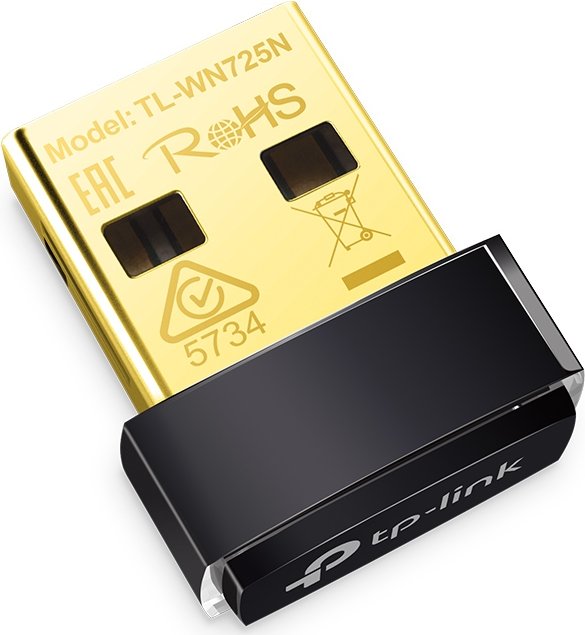
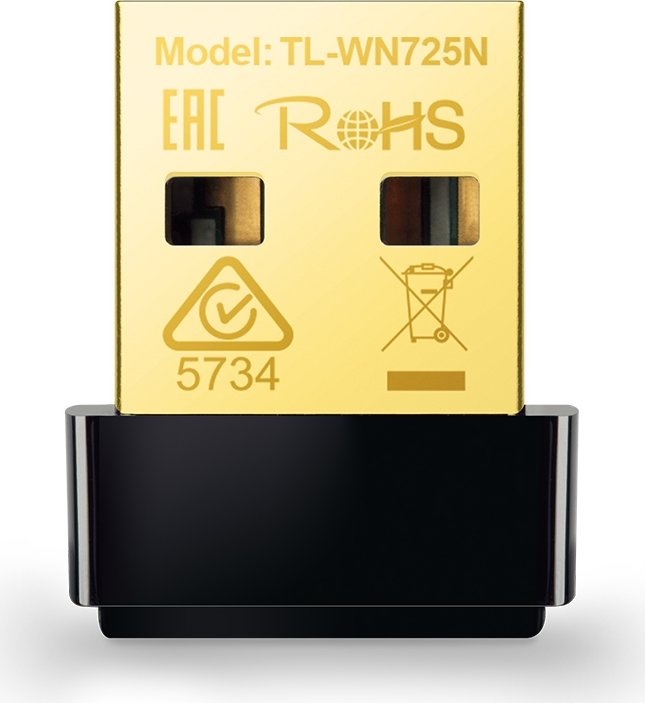
The TP-Link TL-WN725N is a compact 2.4GHz Wireless N nano USB adapter designed to add Wi‑Fi capability to laptops and desktops via a USB-A 2.0 port. Supporting up to 150Mbps, it offers a simple, low-profile solution for everyday internet tasks such as web browsing, video streaming, and light online gaming. The adapter is compatible with 802.11n/g/b devices and supports multiple operating systems including Windows, macOS, and Linux, making it a flexible choice for users who need a reliable wireless connection without bulky hardware.
Key features and how it helps
The TL-WN725N focuses on ease of use: plug it into a USB port, install the driver and utility (or use the built-in OS wireless tools), and connect to a wireless network. It supports standard encryption methods—WEP, WPA/WPA2, WPA-PSK/WPA2-PSK (TKIP/AES) and IEEE 802.1x—so security configurations common to home and small office networks are supported. For quick pairing, the adapter supports WPS (Push Button Configuration and PIN methods), and TP‑Link’s Wireless Configuration Utility simplifies network selection, profile management and SoftAP setup.
The utility gives straightforward management: view connection status and signal strength, save connection profiles for different locations, enable SoftAP to share an internet connection through the adapter, and toggle power saving modes. LED indicators provide basic status feedback—off means driver not installed or radio disabled, slow flash means idle, and fast flash indicates active data transfer. Troubleshooting tips include reseating the adapter and trying alternate USB ports.
Practical usage scenarios
- Upgrade an older laptop or desktop lacking Wi‑Fi or with a failed internal adapter.
- Quickly add wireless to a small-form PC or media box for streaming.
- Use SoftAP mode to create a handheld hotspot from a wired connection for nearby wireless devices.
Installation notes
Drivers and utilities are available on the included CD or from TP‑Link’s download center. Windows users can use either the OS wireless utility or TP‑Link’s utility (Vista has limited utility support). macOS and Linux setup steps differ slightly; macOS installations use an installer package while Linux drivers can be downloaded from TP‑Link’s support page.
Notes
- Keep the adapter at least a small distance from the body during transmission per regulatory guidance.
- If the LED is off, reinstall drivers or test another USB port.
- Use a unique SoftAP security key instead of default values when sharing connections.
Search for 166 Manuals online


Type-in Brand or Model