
Xerox Mobile Scanner Manual
PDF manual · 90 Pages
English



Ask a Question
Frequently Asked Questions
The scanner captures images at 300 dpi. It produces JPG files when using the camera/color mode and creates PDF files (including multi-page PDFs) in black-and-white or color when a PDF function is selected.
Is this answer helpful?
Select a PDF function with the function button, insert the first page, then add subsequent pages within the 10-second inter-page window. When finished, wait for the timer to expire or press the function button to finalize and save the multi-page PDF.
Is this answer helpful?
Yes. The included Eye-Fi SDHC card enables wireless transfers to configured Wi‑Fi networks, Eye‑Fi online services, or directly to paired mobile devices via Eye‑Fi Direct Mode. Setup requires Eye‑Fi Center on a computer and the Eye‑Fi/Xerox mobile apps (DocToMe for iOS or Eye‑Fi for Android).
Is this answer helpful?
For iPad use the Apple Camera Connection Kit and select the JPG camera function; iPad imports appear in the Photos gallery. For Android, the device must support USB mass-storage (mount as disk) and have an external memory card installed; then connect via USB and mount as a disc drive before scanning.
Is this answer helpful?
Perform monthly calibration using the supplied calibration page and clean the internal glass and rollers with the provided swab and isopropyl alcohol if streaks appear. Follow the manual’s cleaning steps using the glass-release button to access the scan path.
Is this answer helpful?
Allow at least 8 hours for the initial charge; subsequent full recharges take about 4 hours. A single battery charge allows approximately 300 pages of scanning under typical conditions.
Is this answer helpful?
Check the phone’s USB connection mode and switch it to 'disc drive' or 'mass storage.' If prompts don’t appear, consult the device manual. For some devices a workaround (switching between sync and disc modes) can force proper initialization.
Is this answer helpful?
Advantages and Disadvantages
Advantages

- Portable battery-powered design scans up to ~300 pages per charge and supports scanning while traveling.
- Flexible output: JPG or multi-page PDF at 300 dpi, with direct save to SD card or USB flash drive.
- Wireless transfers via bundled Eye-Fi card to computers, cloud services and mobile apps (Direct Mode available).
- Simple controls and clear LED status codes; user-serviceable calibration and cleaning procedures.
- Broad platform support via Eye-Fi/Xerox apps: Windows, macOS, iOS (DocToMe), and Android.
Disadvantages

- Relies on Eye-Fi ecosystem for wireless features; requires account, software and occasional firmware updates.
- iPad scanning requires Apple Camera Connection Kit and supports JPG only, not PDF via direct cable.
- Direct USB scanning requires mobile device to expose mass-storage mode; many modern phones lack this.
- Some Eye-Fi features (Endless Memory auto-delete) need additional Xerox desktop utilities to function.
- Battery must be charged separately and scanner cannot scan while charging from some sources.
Product Description
Xerox Mobile Scanner — Portable, Flexible Scanning ## Overview
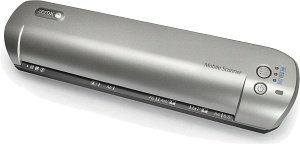
The Xerox Mobile Scanner is a compact, battery-powered sheet-fed scanner designed for on-the-go capture of receipts, photos, invoices and documents up to 8.5 x 14 inches. It scans at 300 dpi in color or black-and-white and can produce JPG or multi-page PDF files. The unit supports direct scanning to SD/SDHC memory cards or USB flash drives, and can also connect to computers and mobile devices for file retrieval or wireless transfer.
Key features and usage
The scanner features a simple control panel with a power button, a function button to cycle modes, and status LEDs to show operation and error states. A removable rechargeable battery powers roughly 300 pages per charge; charging takes about 4 hours after initial 8-hour conditioning. The device includes a memory card slot and a USB port for thumb drives, and supports scanning directly to Android devices (when mounted as a disk), iPad (via Apple Camera Connection Kit, JPG only), and selected other mobile devices that expose removable storage.
Wireless transfer is enabled via the bundled Eye-Fi SDHC card. Eye-Fi integrates with Eye-Fi Center on Windows and macOS, allowing activation, network setup, and options to send JPG (photos) and RAW/PDF files to a computer, online services (including Evernote) or mobile apps (Xerox DocToMe for iOS, Eye-Fi app for Android). Direct Mode enables the Eye-Fi card to act as a hotspot so scanned files can be delivered to a paired mobile device when no Wi-Fi is available. The Eye-Fi workflow supports relayed transfers (staging files on Eye-Fi servers), infinite-memory-style options, and auto-delete of transferred files when configured with Xerox desktop utilities.
Maintenance and safety
User maintenance includes periodic calibration (using the supplied calibration page) and cleaning the internal glass with an alcohol-dampened swab via an internal release button. The manual emphasizes electrical and operational safety, certified compliance (UL/CSA/IEC), and environmental disposal guidance. Status LEDs indicate function, battery and error codes; common troubleshooting covers paper jams, missing media detection, and connection issues with mobile devices.
Notes
- Scans at fixed 300 dpi with automatic cropping for items between 2"x2" and 8.5"x14".
- Multi-page PDFs: insert pages within the 10-second inter-page window or press function to finalize.
- Eye-Fi features may require installing Eye-Fi Center, helper utilities, and mobile apps; Internet and account registration needed for full functionality.
- Some mobile devices vary in USB modes; device must support mass-storage mode to scan directly via cable.
Search for 166 Manuals online


Type-in Brand or Model