
Eingabegeräte Manuals
Manuals
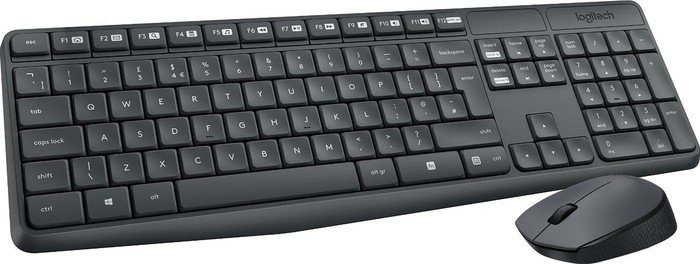
Eingabegeräte Manuals
Einführung
Eingabegeräte Manuals bieten Anwendern, Technikern und Entwicklern umfassende Informationen über die Bedienung, Einrichtung, Wartung und Fehlerbehebung von Eingabegeräten. Unter dem Begriff Eingabegeräte werden eine Vielzahl von Peripheriegeräten zusammengefasst, die dazu dienen, Daten und Befehle in Computersysteme, Steuergeräte oder andere digitale Systeme einzuspeisen. Dazu gehören Tastaturen, Mäuse, Touchscreens, Grafiktabletts, Gamecontroller, Barcode-Scanner, Joysticks, Mikrofone, Scanner und spezialisierte Industrie-Eingabegeräte.
Ein gut strukturiertes Manual ist essenziell, um die Funktionalität und Langlebigkeit eines Geräts zu gewährleisten, die Benutzerfreundlichkeit zu erhöhen und Fehlbedienungen zu vermeiden. Manuals adressieren sowohl Endanwender mit minimalem technischen Hintergrund als auch professionelle Anwender mit höheren Anforderungen an Anpassung, Integration und Fehleranalyse.
Zielgruppe und Zweck
Endbenutzer
Für Endbenutzer vermitteln Manuals grundlegende Informationen zur Inbetriebnahme, Bedienung und Pflege des Geräts. Typische Inhalte sind Auspackhinweise, Anschluss- und Installationsanweisungen, Beschreibung von Tasten und Funktionen, häufige Fehlermeldungen sowie Sicherheits- und Reinigungshinweise.
Administratoren und Techniker
Technische Manuals richten sich an Personen, die Geräte in Netzwerke integrieren, mechanische Anpassungen durchführen oder Firmware- und Treiberupdates verwalten. Sie enthalten detaillierte Schemas, elektrische Anschlusspläne, Diagnoseverfahren, Ersatzteilnummern und Informationen zur Kompatibilität mit Betriebssystemen und Software.
Entwickler und Integratoren
Spezielle Entwicklerdokumentationen stellen Programmierschnittstellen (APIs), Protokolldokumentationen, Beispielcode, Datenformate und Timing-Informationen bereit. Sie sind wichtig für die Integration in kundenspezifische Systeme oder zur Entwicklung von Treibern und Middleware.
Aufbau und Gliederung eines guten Manuals
Ein vollständiges Manual folgt einer klaren Struktur, die es dem Leser ermöglicht, schnell relevante Informationen zu finden. Typische Kapitel sind:
- Titelblatt und Kurzbeschreibung
- Sicherheitsinformationen und Warnhinweise
- Lieferumfang und Systemvoraussetzungen
- Technische Daten und Spezifikationen
- Schritt-für-Schritt Installationsanleitung
- Bedienungsanleitung mit Abbildungen
- Software- und Treiberinstallation
- Konfiguration und Anpassungsmöglichkeiten
- Fehlerbehebung und FAQs
- Wartung, Reinigung und Lagerung
- Entsorgung und Umweltinformationen
- Anhang: Schaltpläne, Pinouts, Zertifizierungen, Garantie
Jedes Kapitel sollte klar nummeriert und mit Querverweisen versehen sein, damit Anwender bei Bedarf schnell zwischen Theorie und praktischer Anleitung wechseln können.
Inhaltliche Details nach Gerätekategorien
Tastaturen
Manuals für Tastaturen behandeln Tastenbelegungen, Layouts (z. B. QWERTZ, QWERTY), Makroprogrammierung, Beleuchtungssteuerung (RGB), Verbindungstypen (USB, Bluetooth), Schlaf-Modi und Firmware-Updates. Spezielle Hinweise zur Erkennung durch das Betriebssystem und zur Nutzung in virtuellen Maschinen sind oft enthalten. Mechanische Tastaturen kommen mit Informationen zu Schaltertypen, Keycap-Pflege und Stabilizer-Wartung.
Mäuse
Mäuse-Manuals beschreiben Sensortypen (optisch, Laser), DPI-Einstellungen, Polling-Rate, Makro- und Tastenbelegungen, Oberflächenkompatibilität und Akkupflege bei kabellosen Modellen. Für Gaming-Mäuse sind Kalibrierungsoptionen und Profilverwaltung wichtig.
Touchscreens und Touchpads
Diese Manuals erklären Kalibrierung, Multi-Touch-Gesten, Treiberintegration, Kompatibilität mit Stift-Eingaben (Stylus) sowie Schutzfolien und Reinigungshinweise. Spezielle Kapitel behandeln Helligkeitssteuerung, Reaktionszeit und Umgebungslichtsensoren.
Grafiktabletts und Stifteingabegeräte
Sie behandeln Drucksensitivität, Tilt-Erkennung, Treiber- und Softwareintegration, Firmware-Updates und die Konfiguration von Tasten und Rad-Funktionen. Austauschbare Spitzen, Batteriewechsel und Latenzoptimierung sind oft enthalten.
Barcode-Scanner und RFID-Lesegeräte
Manuals erklären Scan-Modi (z. B. 1D, 2D), Schnittstellenprotokolle (USB-HID, Serial, Keyboard-Emulation), Konfiguration per Programming-Barcode, Laser- und Imaging-Technologie sowie Umgebungsbedingungen, die die Lesegenauigkeit beeinflussen.
Gamecontroller und Joysticks
Beschreibung der Achs-, Knopf- und Force-Feedback-Funktionen, Kalibrierung, Mapping-Software und Mehrbenutzerprofile sind integraler Bestandteil. Auch Hinweise zur Latenz, Polling-Rate und Kompatibilität mit Konsolen und Plattformen werden behandelt.
Spezialisierte Industrie-Eingabegeräte
In industriellen Manuals finden sich robuste Gehäusebeschreibungen, Schutzarten (IP-Ratings), Temperaturbereiche, Schock- und Vibrationsfestigkeit, elektrische Anschlussdetails und Integrationshinweise in SPS- oder Embedded-Systeme.
Formatierung und Darstellungsformen
Ein Manual sollte klar und konsistent formatiert sein. Wichtige Elemente:
- Schritt-für-Schritt-Anleitungen mit nummerierten Schritten
- Abbildungen, Explosionszeichnungen und Symbollegenden
- Tabellen für Spezifikationen und Kompatibilitätslisten
- Icons für Warnung, Vorsicht, Hinweis und Tipp
- Glossar für fachliche Begriffe
- Index für schnelle Suche
Zusätzlich werden zunehmend interaktive Manuals angeboten, z. B. als HTML-Dokumente mit Suchfunktion, eingebetteten Videos, 3D-Ansichten und kontextsensitiven Hilfen innerhalb von Software.
Lokalisierung und Mehrsprachigkeit
Manuals sollten die Zielmärkte berücksichtigen. Neben Übersetzungen sind kulturelle Unterschiede und lokale Sicherheitsbestimmungen zu beachten. Technische Abbildungen bleiben meist unverändert, während Maßeinheiten, Tastaturbelegungen und regulatorische Hinweise lokalisiert werden müssen. Normen wie CE, FCC, RoHS oder regionale Vorschriften sollten korrekt referenziert sein.
Sicherheits- und Compliance-Aspekte
Eingabegeräte müssen oft bestimmte Normen erfüllen. Manuals informieren über:
- Elektromagnetische Verträglichkeit (EMV)
- Elektrische Sicherheit (z. B. Schutzklasse)
- Umwelt- und Entsorgungshinweise (WEEE, RoHS)
- Konformitätserklärungen
- Hinweise zu Batterien und Akkus
Sicherheitswarnungen schützen Anwender vor Gefahren wie Kurzschlüssen, Brandgefahr durch unsachgemäße Akkubehandlung oder Verletzungsrisiken bei mechanischen Teilen.
Fehlerbehebung und Support
Ein praxisnahes Troubleshooting-Kapitel reduziert Support-Anfragen. Es umfasst:
- Checklisten für Verbindungs- und Erkennungsprobleme
- Testprozeduren (z. B. Tastenmatrix-Tests, Sensortests)
- Protokollierung und Log-Analyse für Entwickler
- Anleitungen für Firmware-Rollback und Recovery
- Kontaktinformationen für Support und RMA-Prozesse
Ein guter Manual-Abschnitt zur Fehlerbehebung enthält klare Anweisungen, Fehlertabellen mit Symptomen und empfohlenen Maßnahmen sowie Hinweise, wann ein Gerät eingeschickt werden sollte.
Wartung, Pflege und Lebensdauer
Regelmäßige Pflege verlängert die Lebensdauer von Eingabegeräten. Manuals geben Empfehlungen zu Reinigungslösungen, Intervallen für Wartung, Austauschkomponenten (z. B. Gummifüße, Keycaps, Spitzen) und Lagerbedingungen. Für batteriebetriebene Geräte werden Ladezyklen, Tiefentladungsvermeidung und Recyclinghinweise erklärt.
Zukunftstrends in Manuals für Eingabegeräte
- Interaktive, multimodale Manuals mit AR-Unterstützung für visuelle Schrittführung
- Automatisch generierte, kontextsensitive Hilfen innerhalb der Geräte-Software
- Integration von Telemetriedaten zur automatisierten Fehleranalyse
- Community-getriebene Wissensdatenbanken und erweiterte FAQ-Systeme
Solche Ansätze reduzieren Komplexität und verbessern die Nutzererfahrung, insbesondere bei neuen Technologien wie haptischer Rückmeldung, persistenter Gestenerkennung und adaptiven Eingabesystemen.
Zusammenfassung
Eingabegeräte Manuals sind weit mehr als einfache Bedienungsanleitungen: Sie sind zentrale Dokumente zur sicheren, effizienten und nachhaltigen Nutzung von Peripheriegeräten. Ein gut gestaltetes Manual deckt Zielgruppen von Endanwendern bis zu Entwicklern ab, ist klar strukturiert, lokalisiert und enthält umfassende Informationen zu Installation, Betrieb, Wartung und Troubleshooting. Mit dem Vormarsch digitaler und interaktiver Formate werden Manuals zunehmend dynamisch, kontextsensitiv und in der Lage, direkt mit Geräten und Support-Systemen zu kommunizieren, was die Nutzererfahrung und die Produktzuverlässigkeit weiter verbessert.
Search for 166 Manuals online


Type-in Brand or Model