
StarTech LAN adapter, RJ-45, USB-A 3.0 (plug) Manual
PDF manual · 2 Pages
English



Ask a Question
Frequently Asked Questions
The adapter supports USB 3.0 (also known as USB 3.1 Gen 1) data rates up to 5 Gbps for USB connections and provides a Gigabit Ethernet (1000 Mbps) RJ45 network interface.
Is this answer helpful?
Many modern operating systems install drivers automatically. If automatic installation fails, download the latest drivers from the product support page at www.startech.com/ST3300G3UA and follow the provided installation steps.
Is this answer helpful?
The adapter is compatible with Windows versions (including Windows 7, 8, 8.1, 10, and certain Server editions) and Mac OS versions tested up to 10.11. Operating system support may change, so consult the StarTech product page for the latest compatibility details.
Is this answer helpful?
A power LED indicates the hub is receiving power. A link and activity LED illuminates when the adapter is connected to a network; a blinking state indicates network activity or data transfer.
Is this answer helpful?
The package typically includes the 3-port USB 3.0 hub with integrated Gigabit Ethernet (ST3300G3UA) and an instruction manual. No external power supply is required for normal operation.
Is this answer helpful?
Yes. StarTech offers a two-year warranty against defects in materials and workmanship and provides lifetime technical support via their website for downloads, troubleshooting, and product information.
Is this answer helpful?
No. To obtain full USB 3.0 throughput, the adapter must be connected to a USB 3.0 host port. Connecting to a USB 2.0 port will limit transfer speeds to USB 2.0 rates.
Is this answer helpful?
Advantages and Disadvantages
Advantages

- Combines three USB 3.0 ports and a Gigabit RJ45 port in one compact adapter.
- Supports USB 3.0/USB 3.1 Gen 1 speeds up to 5 Gbps and is backward compatible with USB 2.0.
- Easy setup with plug-and-play on many OS versions and downloadable drivers if needed.
- LED indicators for power and network link/activity provide quick status feedback.
- Lifetime technical support and a two-year warranty back product reliability.
Disadvantages

- Maximum throughput requires a host USB 3.0 port; performance limited on USB 2.0.
- Driver installation may be required for some OS versions, adding setup steps.
- Limited tested Mac OS support (up to 10.11) — newer macOS versions may need verification.
- Warranty excludes damage from misuse, wear and tear, or unauthorized modifications.
- Single integrated cable limits placement flexibility compared to models with detachable cables.
Product Description
StarTech LAN adapter, RJ-45, USB-A 3.0 (plug) Manual
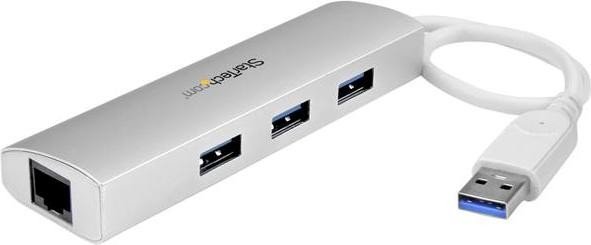
The StarTech LAN adapter with RJ-45 and USB-A 3.0 is a compact, portable solution that combines a three-port USB 3.0 hub with a Gigabit Ethernet adapter. Designed for users who need extra ports and reliable wired networking, this adapter supports USB 3.0 (also known as USB 3.1 Gen 1) speeds up to 5 Gbps while remaining backward compatible with USB 2.0 devices. It offers a neat, single-cable connection to a host computer and includes status LEDs for power and network activity, helping you verify connectivity at a glance.
Engineered for compatibility, the adapter works with Windows (including Windows 7 through Windows 10 and select Server editions) and Mac OS versions tested up to 10.11. To achieve maximum performance, it’s recommended to connect the device to a USB 3.0 port on your computer. The package typically contains the 3-port hub with integrated Gigabit RJ45 port and an instruction manual. For driver downloads, technical specifications, and support, StarTech provides online resources and a lifetime technical support promise.
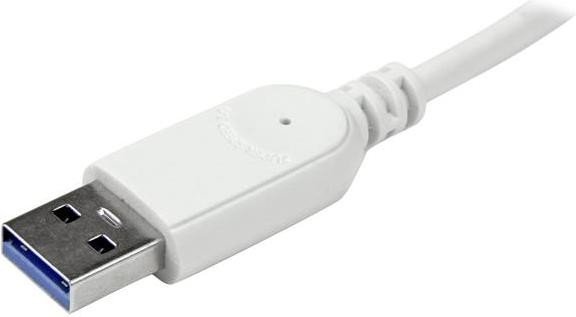
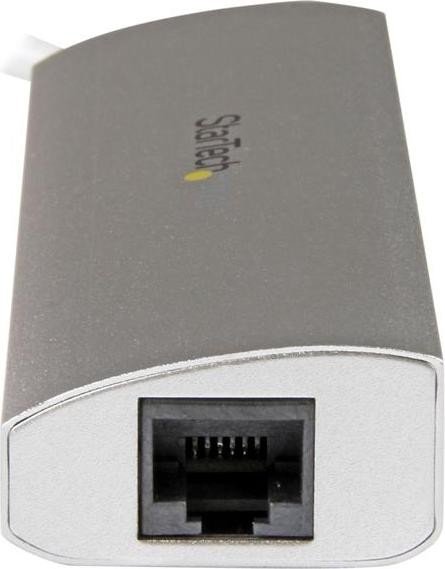
Setup is straightforward: plug the USB-A 3.0 connector into your computer, connect an Ethernet cable (Cat5e/6) to the RJ45 port, and attach up to three USB peripherals. Many modern OS versions will automatically install drivers; if not, drivers can be downloaded from StarTech’s product page. LED indicators show power and link/activity status—solid light indicates power or network connection, while blinking signals network activity.
The adapter also complies with regulatory standards (FCC Class B, Industry Canada) and comes with a two-year warranty covering defects in materials and workmanship. StarTech notes that warranty does not cover damage from misuse or normal wear. As with most adapters, firmware/drivers may be updated over time, so consulting the product’s online support page is advised to ensure compatibility and optimal performance.
Notes:
- Best performance requires a USB 3.0 host port.
- Drivers are available from StarTech’s support/download pages if automatic installation fails.
- LED indicators provide quick connection and activity feedback.
- Two-year warranty; lifetime technical support available.
Search for 166 Manuals online


Type-in Brand or Model