
StarTech SV231DPDDUA Manual
PDF manual · 15 Pages
English



Ask a Question
Frequently Asked Questions
The switch supports up to 2560x1600 at 60Hz for typical dual-display use. Higher resolutions (up to 3840x2400) may work at reduced refresh rates, suitable for high-quality static imaging but not for high-refresh multimedia.
Is this answer helpful?
No drivers are required. The KVM uses generic USB HID drivers already present in modern operating systems for keyboard and mouse functionality, allowing plug-and-play operation across Windows, macOS, and many Linux distributions.
Is this answer helpful?
You can switch using the front-panel port selection button or hotkey sequences. The default hotkey is two quick presses of the left CTRL key followed by a port number (e.g., Ctrl, Ctrl, 1). Alternative sequences include double ScrollLock or Shift+NumLock double-press on keyboards without ScrollLock.
Is this answer helpful?
Yes. The unit supports DisplayPort audio plus 2-channel analog stereo and microphone inputs; it also includes USB hub ports to share peripherals like storage devices, printers, or webcams, though the USB ports operate at USB 2.0 speeds.
Is this answer helpful?
AutoScan cycles through powered-on computers at a set interval. The default scan time is 3 seconds, and you can change it to 3, 8, 15, or 30 seconds using hotkey commands. Keyboard and mouse are not operable while AutoScan runs.
Is this answer helpful?
Yes. You can switch the leading hotkey from the left CTRL to the right CTRL (and back) using a specified hotkey sequence, which helps prevent accidental triggers when frequently using left-CTRL shortcuts.
Is this answer helpful?
The product includes a three-year warranty covering parts and labor for defects in materials and workmanship, plus lifetime technical support from StarTech.com via their support portal and download center for firmware and resources.
Is this answer helpful?
Advantages and Disadvantages
Advantages

- Supports dual DisplayPort per computer and resolutions up to 2560x1600@60Hz for dual-monitor setups.
- Integrated audio (DisplayPort + analog) and USB 2.0 hub for sharing peripherals between systems.
- Multiple hotkey options (Left Ctrl, ScrollLock, Shift+NumLock) and configurable leading hotkey.
- No drivers required; uses standard USB HID for quick, cross-platform setup.
- Backed by a 3-year warranty and lifetime technical support from StarTech.com.
Disadvantages

- Maximum high-resolution support (3840x2400) is limited to reduced refresh rates for static imaging.
- USB ports are USB 2.0, which may limit bandwidth for high-speed peripherals.
- Not cascaded—limited to two computers; expansion requires additional hardware.
- On-screen display (OSD) is not supported for visual menu navigation.
- AutoScan disables keyboard/mouse input while scanning, which may interrupt workflows.
Product Description
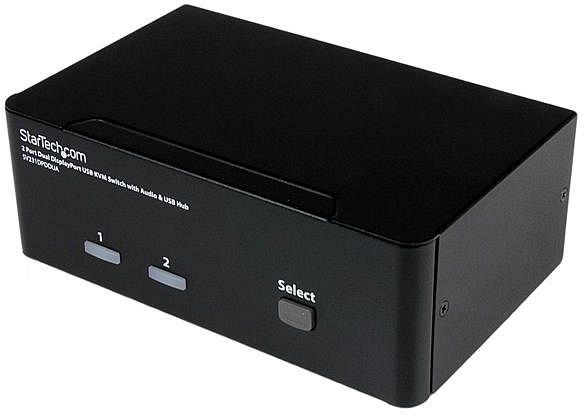
StarTech SV231DPDDUA Manual — 2-Port Dual DisplayPort USB KVM Switch
The StarTech SV231DPDDUA is a versatile 2-port Dual DisplayPort USB KVM switch designed for professionals who need to control two computers with a single keyboard, mouse, dual-display setup, and shared audio/USB peripherals. Built for demanding multimedia and multi-system environments, it supports high-resolution dual-monitor configurations and delivers reliable switching with both front-panel and hotkey control.
Key Features and Usage
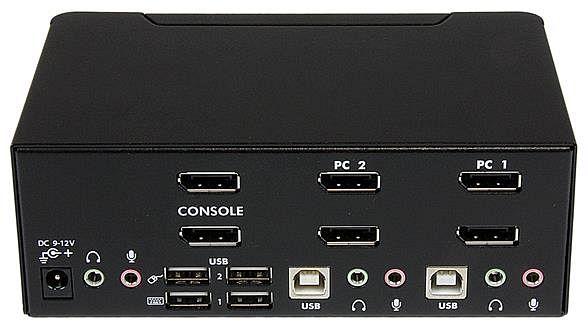
This KVM switch supports two DisplayPort video outputs per computer, allowing seamless control of dual-head systems or mixed setups using inexpensive passive adapters. It handles DisplayPort audio, 2-channel analog stereo output, and microphone input, making it suitable for multimedia workflows. The switch natively supports resolutions up to 2560x1600 at 60Hz and can accommodate ultra-high resolutions (up to 3840x2400) at reduced refresh rates for static imaging tasks.
Installation is straightforward: connect monitors, keyboard, mouse, and optional audio to the console; link each computer with DisplayPort and USB type A–B cables (or an optional combo cable); then apply power. The unit requires no driver installation, relying on generic USB HID drivers present in modern operating systems.
Controls and Operation
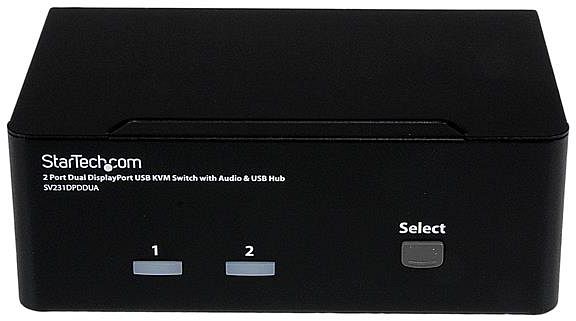
You can toggle between computers using the front-panel button, or use configurable hotkeys. The default hotkey begins with two quick presses of the left CTRL key, though alternatives (Scroll Lock or a Shift+NumLock sequence) are provided for keyboards lacking certain keys. Hotkeys cover port selection, AutoScan, Manual Scan, Scan Time adjustment, and audio locking. The device provides audible beeps to confirm commands and supports changing the leading hotkey to the right CTRL to avoid accidental triggers.
Who Should Use It
This KVM is ideal for power users, content creators, system administrators, medical imaging workstations, and any environment requiring dual-display control across two computers with minimal desk clutter. Its metal enclosure and 3-year warranty with lifetime technical support add to its appeal for professional installations.
Final Notes
Compact and robust, the SV231DPDDUA brings dual-DisplayPort convenience and audio/USB sharing into a single unit. It balances advanced video capabilities with practical hotkey-driven control and flexible installation options.
Notes
- Supports DisplayPort audio and analog stereo/microphone inputs.
- No drivers required; uses standard USB HID support.
- Default scan time is 3 seconds; adjustable to 3, 8, 15, or 30 seconds.
- Included universal power adapter and optional combo cables are available.
Search for 166 Manuals online


Type-in Brand or Model